Why Pakistan's Government Portals Reject Your PDF
You've spent an hour filling in a form, scanned all your documents, and clicked Submit — only to see:
"File size must not exceed 2 MB."
It's one of the most common frustrations for anyone dealing with Pakistani government websites. Here's the exact size limit each major portal enforces:
| Portal | Max file size |
|---|---|
| SECP (company registration, returns) | 2 MB |
| NADRA (CNIC, NICOP, passport) | 1–2 MB |
| FBR (e-filing, tax returns) | 5 MB |
| HEC (degree attestation, scholarship) | 2 MB |
| NTS (application forms, photos) | 50 KB for photos; 2 MB for documents |
| FPSC (CSS/PMS applications) | 2 MB |
| ETEA (KP entry tests) | 1 MB |
A scanned A4 page at 300 DPI typically produces a 3–8 MB PDF. Without compression, you simply cannot upload it.
What Actually Makes a PDF Large?
Before you compress blindly, know why your file is big:
- High-resolution scans — A scanner set to 600 DPI generates a file 4× larger than 300 DPI with almost no visible quality difference on screen.
- Embedded fonts — PDFs that embed every glyph of a custom font can add 500 KB or more.
- Unoptimised images — If you converted JPGs to PDF without prior image compression, the raw bitmap data is carried over.
- Metadata and annotations — Comments, form fields, and bookmarks add invisible weight.
Understanding the cause helps you choose the right compression level.
How to Compress a PDF Free Online (No Sign-Up)
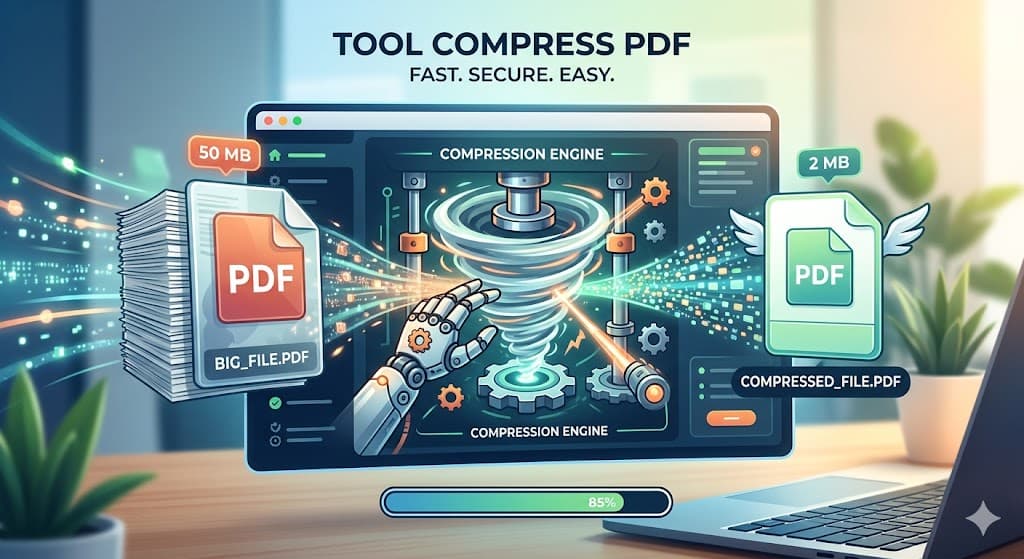
UtilVox PDF Compressor runs entirely in your browser. Your file never leaves your device — nothing is uploaded to any server.
Step 1 — Open the tool
Go to utilvox.com/tools/pdf-compress. No account, no email, no paywall.
Step 2 — Upload your PDF
Drag the file onto the drop zone or click Choose File. Files up to 200 MB are supported.
Step 3 — Choose a compression level
| Level | Best for | Typical size reduction |
|---|---|---|
| Low | Preserving crisp text for professional printing | 10–25% |
| Medium (recommended) | Most portal submissions — good balance | 40–65% |
| High | Photo-heavy scans where some quality loss is acceptable | 60–80% |
For SECP and NADRA, Medium almost always brings a 3–4 MB scan below 2 MB while keeping text fully legible.
Step 4 — Download and verify
Check the file size in Windows Explorer or Mac Finder before uploading. If it's still over the portal limit, run it through the tool a second time on High compression.
Portal-Specific Tips
SECP
SECP's eServices portal accepts PDFs for Form 1 (incorporation), Form 29 (director changes), and annual returns. Compress each attachment separately — SECP often has a per-file limit, not a total submission limit.
NADRA
Passport and CNIC renewal forms require scanned supporting documents. NADRA recommends scanning at 200 DPI, not 300, which immediately halves your file size before you even compress. If you already have a high-DPI scan, Medium compression gets you there.
FBR e-Filing
FBR's IRIS portal has a 5 MB limit — relatively generous. However, if you're attaching multiple documents (withholding tax certificates, bank statements), each individual file must be within 5 MB. Compress each one before attaching.
NTS Photos
NTS is unusually strict: passport-size photos must be under 50 KB and in JPEG format. The PDF Compressor handles documents; for photos use the UtilVox Image Compressor or Image Resizer to hit that 50 KB target.
HEC Degree Attestation
HEC requires original degree scans plus transcript. Scan at 150 DPI if the portal keeps rejecting you — HEC cares about legibility of grades and signatures, not print quality.
Pre-Compression Checklist
Before you compress, run through this list to avoid wasting time:
- Is the PDF a scanned image or a text-based (born-digital) PDF?
- Have you removed any unnecessary pages (cover sheets, blank pages)?
- Did you use the PDF Page Extractor to pull only the required pages?
- For photos: did you use Image Compress before converting to PDF?
- Is your target portal limit clearly noted above?
Removing pages you don't need is often faster and more effective than compression alone.
What If the Compressed File is Still Too Large?
- Split the submission — Use PDF Split to divide a multi-document PDF into separate files. Submit each individually.
- Re-scan at lower DPI — 150 or 200 DPI is sufficient for text documents and produces files 50–75% smaller than 300 DPI scans.
- Convert images to PDF individually — Instead of scanning a 10-page document in one go, compress each page as a JPG first using Image Compress, then merge with PDF Merge.
- Remove metadata — Use PDF Metadata Editor to strip embedded author, creator, and comment fields.
Frequently Asked Questions
Does compressing a PDF make text unreadable? No — at Medium compression, text remains crisp and fully legible. High compression may slightly soften scanned handwriting, but printed text is unaffected.
Is it safe to compress documents with personal information online? With UtilVox, yes — all processing happens locally in your browser using PDF.js and client-side JavaScript. Your CNIC number, bank details, or salary slip never touches a server.
Can I compress a password-protected PDF? You'll need to unlock it first using PDF Unlock, then compress, then re-protect with PDF Protect.
What about mobile? Can I compress on my phone? Yes. UtilVox works on iOS Safari and Chrome for Android. The compression uses WebAssembly which runs on modern mobile browsers.
Summary
| Step | Action | Tool |
|---|---|---|
| 1 | Remove unnecessary pages | PDF Extract Pages |
| 2 | Compress images in the scan | Image Compress |
| 3 | Compress the PDF | PDF Compressor |
| 4 | Verify file size before submitting | Windows Explorer / Mac Finder |
| 5 | If still too large: re-scan at 150 DPI | Your scanner app |
Every Pakistani professional submitting to SECP, NADRA, FBR, NTS, or HEC should bookmark utilvox.com/tools/pdf-compress — it takes under 30 seconds and saves the frustration of a rejected submission.