How to Convert Excel to PDF Online Free — All Sheets, No Watermark
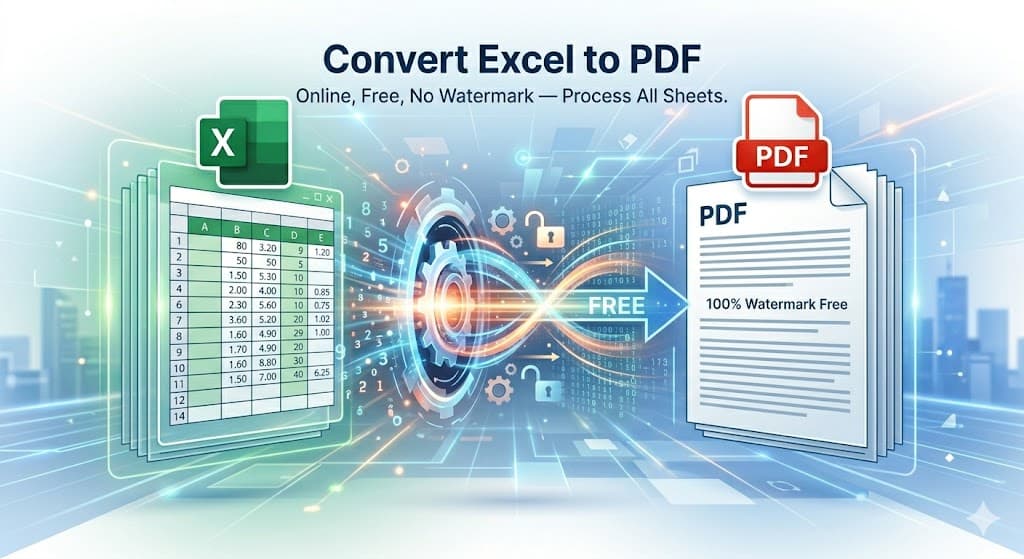
The quickest way to convert Excel to PDF online free is to upload your .xlsx file to UtilVox Excel to PDF, choose your sheet settings, and download the PDF — no watermark, no sign-up, no software needed. The conversion happens server-side and your file is deleted immediately after processing.
Step-by-Step: Convert Excel to PDF in 30 Seconds
Step 1: Go to UtilVox Excel to PDF Converter.
Step 2: Click "Select File" or drag your .xlsx or .xlsm file onto the upload area. Files up to 50 MB are supported.
Step 3: Choose sheet settings — convert all sheets or select specific ones. Each sheet becomes a section in the PDF.
Step 4: Set page size (A4, A3, Letter, Legal) and orientation (Portrait or Landscape).
Step 5: Toggle gridlines on or off based on your preference.
Step 6: Click "Convert to PDF" and download your file.
The output PDF is ready to share, print, or attach to emails.
When to Convert Excel to PDF
Converting a spreadsheet to PDF is the right move in many situations:
Salary slips and payroll: PDFs cannot be accidentally edited. Send salary slips as PDF to avoid employees modifying figures.
Financial statements and reports: Quarterly reports, balance sheets, and P&L statements look more professional as PDFs. Auditors and banks typically prefer PDF submissions.
FBR tax returns and government submissions: Some government portals require documents in PDF format. Export your Excel data as PDF before submitting.
Client proposals and invoices: Excel files look informal in client communication. A PDF invoice presents better and ensures consistent formatting across devices.
Archiving records: PDFs are the standard format for long-term document storage. Excel files can break with version changes; PDFs are universally readable.
Excel to PDF Conversion Methods Compared
There are several ways to convert Excel to PDF. Each has trade-offs.
Method 1: Online Converter (UtilVox) — Best for Quick Conversions
Upload, convert, download. No software needed. Works on any device including mobile. The formatting is clean for standard spreadsheets.
Best for: One-off conversions, mobile users, anyone without Microsoft Excel installed.
Method 2: Microsoft Excel's Built-in Export
Open the file in Excel → File → Export → Create PDF/XPS. This gives the most accurate formatting since it uses Excel's own rendering engine. Merged cells, colors, and complex formulas display exactly as they appear in Excel.
Best for: Complex workbooks with heavy formatting, charts, or conditional formatting.
Method 3: Print to PDF
Open in Excel → Print → Select "Microsoft Print to PDF" as the printer. Works on Windows without any extra software.
Best for: When you want to match exactly what the printed page looks like.
Method 4: Google Sheets
Upload the Excel file to Google Drive → Open in Sheets → File → Download → PDF. Free and works well for simple spreadsheets.
Best for: When you already use Google Workspace.
Common Excel to PDF Problems and Solutions
Problem: Text is cut off in the PDF This happens when columns are too wide for the selected page size. In the online converter, try Landscape orientation. In Excel, use File → Page Setup to fit columns to the page width before exporting.
Problem: Only the first sheet converts In UtilVox, select "Convert All Sheets" in the sheet selector. Some tools only convert the active sheet by default.
Problem: Formulas show as #REF! or errors This means the file has broken formula references. Fix the errors in Excel first, then convert. The PDF shows calculated values, not formulas — but broken formulas show their error codes.
Problem: The PDF is missing some data Online converters limit rows per page for display. If you have 5000+ rows, the PDF will paginate across multiple pages. UtilVox handles all rows — none are truncated.
Problem: Colors and formatting look different Online converters render spreadsheet cells as text with borders. Complex formatting like gradient fills, charts, or conditional formatting colors may not transfer perfectly. Use Microsoft Excel's native export for pixel-perfect results.
How to Convert a Multi-Sheet Workbook to PDF
Multi-sheet workbooks are common for payroll, monthly reports, and financial models. Converting all sheets requires just one extra step.
In UtilVox, after uploading:
- The tool automatically detects all sheet names
- Select "Convert All Sheets" to include every sheet
- Or select "Selected Only" and check the specific sheets you want
- Each sheet becomes a separate page section in the PDF, labeled with the sheet name
Excel to PDF for Pakistani Government Portals
Several Pakistani government portals require document submissions in PDF format:
FBR e-filing: Tax return attachments must be PDF. Export your Excel-based income calculations as PDF before attaching.
SECP filings: Annual returns and financial statements submitted through SECP's portal must be PDF.
PPRA tenders: Many procurement submissions require financial bid documents as PDF. Convert your Excel bid sheets before submission.
Company financial statements: Audited accounts submitted to the registrar of companies must be in PDF.
Frequently Asked Questions
Does the Excel to PDF converter work on mobile? Yes. UtilVox is fully mobile-responsive. Upload your .xlsx file from your phone and download the PDF directly to your device.
Is there a file size limit? UtilVox supports Excel files up to 50 MB. Most standard spreadsheets are well under 5 MB.
Will my formulas be visible in the PDF? No. The PDF shows calculated values (the result of each formula), not the formula text. This is the standard behavior for all Excel-to-PDF converters.
Can I convert .xls (old Excel format) files? UtilVox supports .xlsx and .xlsm formats. For legacy .xls files (Excel 97-2003), open the file in Excel or Google Sheets first, save as .xlsx, then convert.
Does the tool add a watermark? No. UtilVox never adds watermarks to converted files.