How to Convert PDF to Excel Online Free — Extract Tables from PDF to XLSX
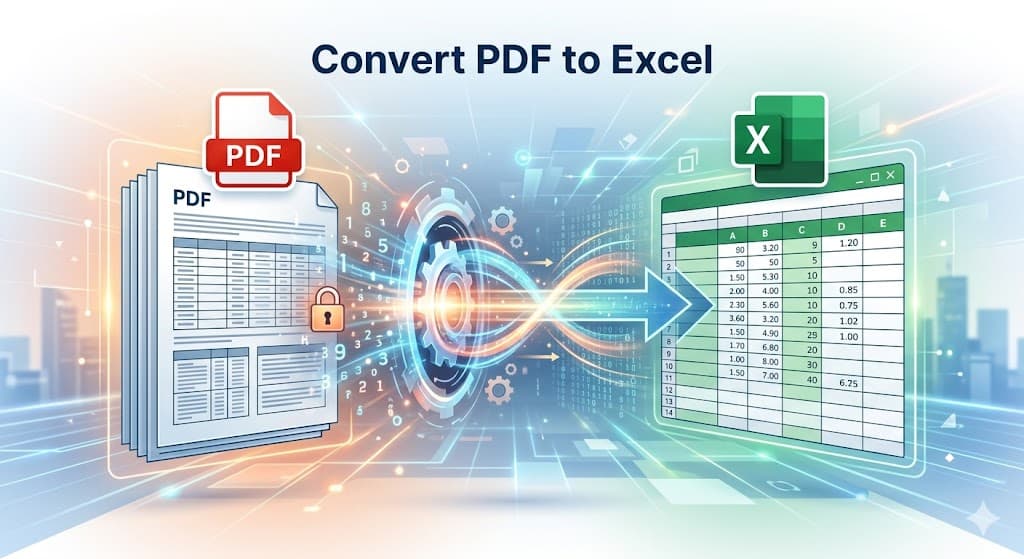
The fastest way to convert a PDF to Excel online free is to use UtilVox PDF to Excel. Upload your PDF, preview the extracted rows and columns, choose single sheet or one sheet per page, and download the .xlsx file — no sign-up, no software, no cost.
Step-by-Step: PDF to Excel in Under a Minute
Step 1: Go to UtilVox PDF to Excel Converter.
Step 2: Click "Select PDF" or drag your file onto the upload area.
Step 3: The tool extracts all text and groups it into rows and columns automatically using position-based detection.
Step 4: Preview the extracted data. Verify rows and columns look correct.
Step 5: Choose "One Sheet Per Page" to keep each PDF page as a separate worksheet, or "All in One Sheet" to combine everything.
Step 6: Click "Download Excel" to save your .xlsx file.
Processing happens in your browser — the file is never uploaded to any server.
What Types of PDFs Convert Well to Excel?
Not all PDFs extract with equal quality. The key factor is how the original PDF was created.
PDFs That Extract Well
Software-generated PDFs are the best candidates for extraction. These include:
- Bank statements exported from online banking portals
- FBR notices and tax certificates downloaded from iris.fbr.gov.pk
- Utility bills downloaded from LESCO, SNGPL, KESC portals
- Invoices generated by accounting software like QuickBooks or Xero
- Reports exported from ERP systems (SAP, Oracle, Dynamics)
In these files, the text is stored as actual characters — not images. The PDF to Excel extractor can read these characters and map them to rows and columns based on their X/Y coordinates on the page.
PDFs That Don't Extract Well
Scanned PDFs are images of paper documents. When you scan a bank statement or a paper invoice, the scanner creates a picture of the page. The text in that picture cannot be read by a standard extractor — it is just pixels.
For scanned PDFs, you need OCR (Optical Character Recognition) first. Use UtilVox PDF OCR to extract text from scanned pages, then convert to Excel.
PDFs with complex layouts — multiple columns, merged cells, footnotes, headers that overlap data — may extract with mixed results. The extracted text is accurate but the column mapping may need manual adjustment in Excel after downloading.
Common Use Cases: PDF to Excel in Pakistan
Bank Statement Analysis
Accountants and finance teams regularly need to analyze bank statements in Excel for reconciliation. Most Pakistani banks — HBL, UBL, MCB, Meezan Bank, Bank Al Falah — allow you to download statements as PDF from internet banking.
Upload the PDF to UtilVox, extract to Excel, and you have a workable spreadsheet with transaction dates, descriptions, debits, credits, and balances. You can then run SUMIF formulas, pivot tables, and trend analysis.
FBR Notice and Tax Certificate Data
FBR sends notices, WHT certificates, and tax computations as PDFs. Converting these to Excel helps in reconciling withholding tax certificates against your books, cross-checking deduction amounts, and preparing tax summaries.
Utility Bill Data Extraction
Businesses receiving multiple utility bills monthly can extract billing data from PDFs into Excel for tracking energy costs, comparing month-over-month consumption, and allocating costs to departments.
Invoice Processing
When vendors send PDF invoices, extracting line items to Excel speeds up accounts payable processing. Instead of manually typing each line, extract once and verify.
PDF to Excel vs Copy-Paste: Which Is Faster?
For a 1-page PDF with 20 rows, copy-pasting is fast enough. For a 50-page bank statement with 2000 transactions, manual entry is not realistic. PDF to Excel conversion saves hours of data entry work.
| Method | 10 rows | 100 rows | 1000+ rows |
|---|---|---|---|
| Manual copy-paste | 5 min | 30 min | 5+ hours |
| PDF to Excel tool | 10 sec | 10 sec | 30 sec |
| Accuracy | High | Medium (errors) | Low (fatigue) |
Improving Extraction Accuracy
If the extracted Excel has some misaligned columns, a few adjustments fix most issues:
Use Text to Columns in Excel: If numbers and text land in the same cell, select the column, go to Data → Text to Columns, and split by delimiter.
Fix merged cells: Sometimes adjacent cell values merge into one. Find and split them using Find & Replace.
Remove blank rows: PDFs often have header/footer text on every page. After extraction, filter and delete rows that contain repeated headers.
Check number formats: Extracted numbers may be stored as text. Select numeric columns and use Format Cells → Number to convert them for calculations.
Best Free PDF to Excel Tools Compared
| Tool | Browser Processing | File Limit | Accuracy | Sign-up |
|---|---|---|---|---|
| UtilVox | ✅ Yes | No limit | Good for text PDFs | Not required |
| Adobe Acrobat | ❌ Server | 2 files/month | Excellent | Required |
| ilovepdf | ❌ Server | 100 MB | Good | Optional |
| Smallpdf | ❌ Server | 5 MB free | Good | Required for large |
For privacy-sensitive documents like bank statements or payroll data, browser-based processing ensures your data never reaches a third-party server.
Frequently Asked Questions
Can I convert a scanned bank statement PDF to Excel? Not directly. Scanned PDFs are images — the text cannot be extracted without OCR. Use UtilVox PDF OCR first to make the text selectable, then convert to Excel.
Why are some numbers extracted as text in Excel? PDF text extraction treats all content as strings. After extraction, select numeric columns and use Format Cells → Number in Excel, or multiply by 1 to force conversion.
Can I extract tables from a multi-page PDF? Yes. Choose "One Sheet Per Page" to keep each page's data in its own worksheet, or "All in One Sheet" to combine all pages into a continuous table — useful for long bank statements.
Does the tool work on mobile? Yes. UtilVox is fully mobile-responsive. You can upload a PDF from your phone's storage and download the Excel file directly to your device.
Is there a row limit for extraction? No. UtilVox extracts all rows from all pages. A 500-page PDF with thousands of rows will fully extract to Excel.