How to Unlock a Password Protected PDF Online Free
The fastest way to unlock a password protected PDF online free is to use a browser-based tool that removes restrictions without uploading your file to a server. UtilVox's PDF Unlocker processes your file entirely in your browser — no sign-up, no software, and your document never leaves your device.
Two Types of PDF Passwords — Which One Do You Have?
Before unlocking a PDF, it helps to understand that there are two completely different types of PDF passwords. Many people get stuck because they are trying to solve the wrong problem.
Owner Password (Restrictions Password)
An owner password does not prevent you from opening the file. You can open the PDF normally, read it, and see all its contents. But when you try to print it, copy text, or make edits, the PDF blocks you. This is what most government-issued PDFs, bank statements, and office documents use.
This type of restriction can be removed without knowing the original password. The file is not truly encrypted — it just has permissions flags set. Online tools like UtilVox can strip these flags instantly.
User Password (Open Password)
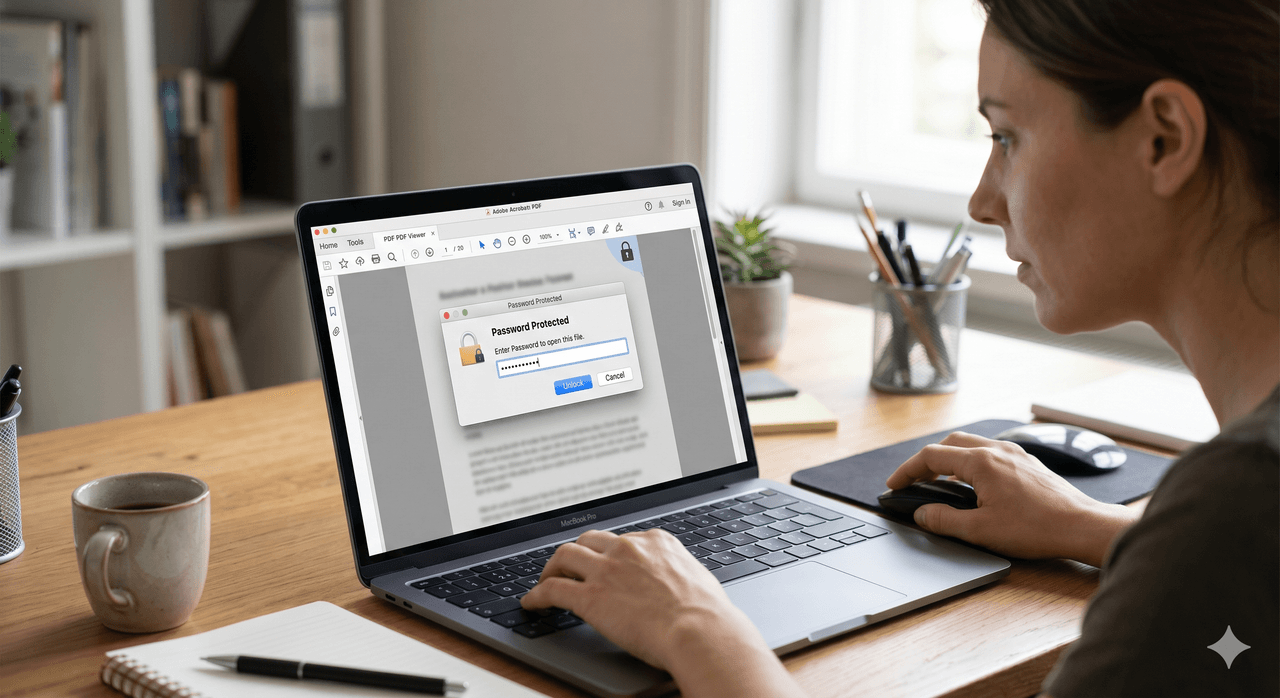
A user password locks the file completely. You cannot even open the PDF without entering the correct password. If you forgot the password to your own file, recovery depends on how strong the original password was.
For user passwords, you must enter the correct password to proceed. No legitimate online tool can bypass a properly encrypted user password — anyone claiming to do so is either lying or running a phishing operation.
Step-by-Step: How to Unlock a PDF Online Free
Removing owner-level restrictions from a PDF takes about ten seconds.
Step 1: Go to UtilVox PDF Unlocker.
Step 2: Click "Select PDF" or drag your file onto the upload area.
Step 3: If the PDF has a user password (open password), enter it in the password field. If it only has owner restrictions, leave the field blank.
Step 4: Click "Unlock PDF". The tool processes your file in your browser.
Step 5: Download the unlocked PDF. All printing, copying, and editing restrictions are removed.
The entire process happens in your browser using the pdf-lib library. Your file is never uploaded to any server.
Why Can't I Print or Copy Text from My PDF?
If you can open a PDF normally but cannot print it or select text, the file has owner-level restrictions. This is very common with:
- Bank statements — many banks issue PDFs with print restrictions
- Government documents — SECP filings, FBR notices, NADRA forms
- University certificates — digital certificates often block editing
- Company reports — annual reports, audits, contracts
These restrictions exist to discourage unauthorized editing, but they do not encrypt the actual content. Removing them is straightforward.
Is It Legal to Unlock a PDF?
Unlocking a PDF is legal when you own the file or have permission to modify it. The situations where this is clearly legal include:
- Removing restrictions from your own documents that you created
- Unlocking a PDF you received and need to print or annotate
- Recovering access to your own files where you set and forgot the password
It is not legal to unlock PDFs you do not have permission to access, such as paid content, copyright-protected ebooks, or confidential files belonging to others.
Common PDF Unlock Problems and Fixes
Problem: The tool asks for a password but I don't know it This means the PDF has a user password (open password). You cannot unlock it without the correct password. Try common passwords you may have used, or contact whoever sent you the file.
Problem: The PDF unlocks but still won't let me edit text The PDF may be a scanned image inside a PDF container. Even after removing restrictions, you cannot select or edit text in a scanned PDF because the text is an image. Use a PDF OCR tool to extract the text first.
Problem: The unlocked PDF looks different from the original Some PDF tools re-render pages during the unlock process, which can shift text or change formatting slightly. UtilVox preserves the original structure by only modifying the permissions flags, not the page content.
Problem: I need to unlock 50+ PDFs For bulk unlocking, a desktop tool like PDF24 Desktop or Adobe Acrobat Pro handles batch processing. Browser-based tools work best for individual files.
Best Free PDF Unlocker Tools Compared
| Tool | Owner Password | User Password | File Limit | Privacy |
|---|---|---|---|---|
| UtilVox | ✅ Yes | ✅ With password | No limit | Browser-only |
| ilovepdf | ✅ Yes | ✅ With password | 100 MB | Server upload |
| Smallpdf | ✅ Yes | ✅ With password | 5 MB free | Server upload |
| PDF24 | ✅ Yes | ✅ With password | No limit | Server upload |
UtilVox is the only tool in this list that does not upload your file to a server. For sensitive documents like bank statements, legal contracts, or personal certificates, this matters significantly.
Frequently Asked Questions
Can I unlock a PDF on my phone? Yes. UtilVox PDF Unlocker is fully responsive and works on Android and iOS browsers without any app installation.
Does unlocking a PDF reduce its quality? No. Only the permissions flags are modified. Page content, images, fonts, and formatting remain identical to the original.
Why do some PDFs say "secured" even after unlocking? The security label can appear in some PDF viewers even after restrictions are removed, depending on how the viewer reads the file metadata. Try opening in a different PDF viewer — the restrictions should be gone.
Can I re-lock a PDF after unlocking it? Yes. Use UtilVox's PDF Protect tool to add a new password after you have finished editing.