Bulk Image Resizer Guide: Resize Multiple Photos Online Free in 2026
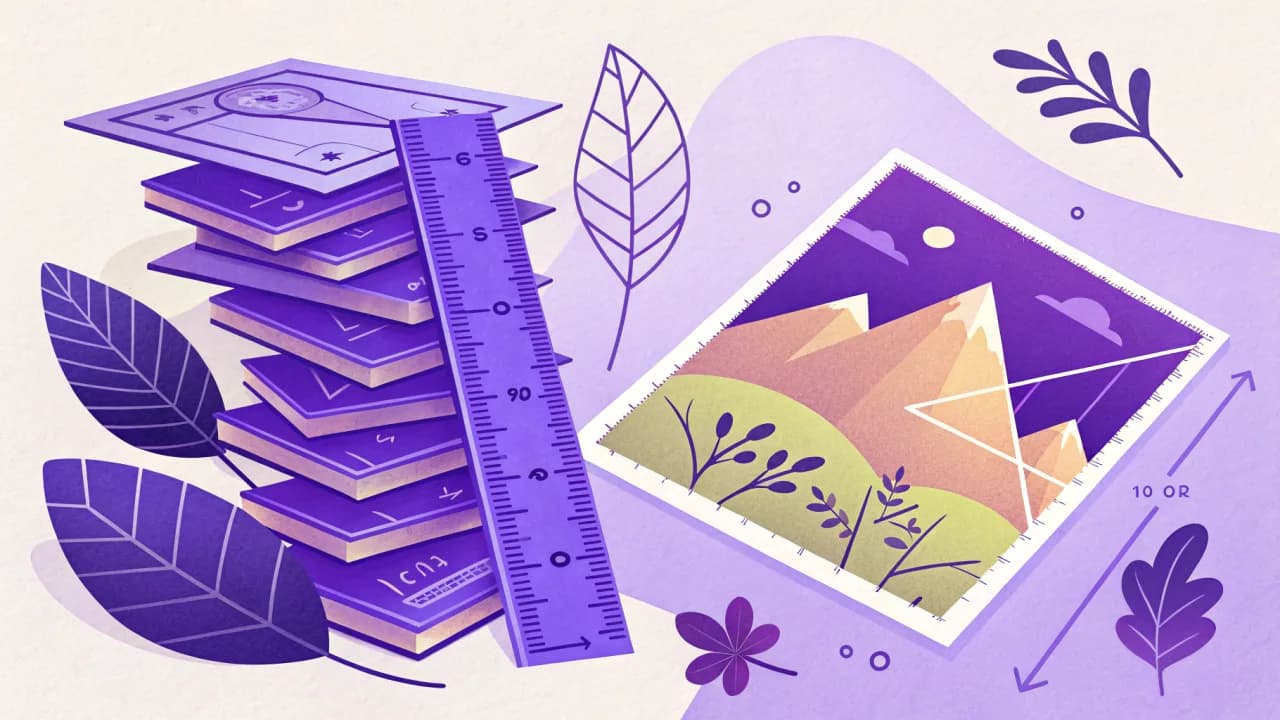
A bulk image resizer is a tool that lets you resize multiple images at once — set custom dimensions, maintain aspect ratio, and export them all in one batch instead of editing each file one by one. This saves hours of repetitive work for photographers, e-commerce sellers, social media managers, and web developers.
In this guide, we compare the strongest options so you can match a tool to what you actually do.
What Is a Bulk Image Resizer?
A bulk image resizer is software (web-based, desktop, or command-line) that scales many image files at the same time using a single set of parameters. You tell it the target width and height, choose a file format, and it processes every image in the batch.
Think of the alternative: opening one photo in an editor, resizing it, saving it, then repeating for the next 50 images. That takes 30 seconds per image minimum. With a bulk resizer, you do the work once and the tool repeats it for every file.
Most bulk resizers support common image formats: JPEG, PNG, GIF, WebP, and sometimes HEIC and TIFF. The broader the format support, the fewer conversion steps you need before resizing.
Who Needs Bulk Image Resizing and Why It Matters
Resizing one image is trivial. But when you have 200 product photos for an online store, that workflow turns into hours of boring, error-prone work.
E-commerce sellers are the biggest users. A Daraz or Amazon listing requires images at specific pixel dimensions — 1000×1000 for the main photo, 500×500 for thumbnails. Doing that manually for every product is not practical.
Social media managers rely on bulk resizing to keep Instagram grids, Facebook covers, and LinkedIn banners consistent. When you manage multiple accounts, a batch resizer eliminates manual repetition.
Web developers use bulk resize to optimize page load speed. Large images slow websites. Resizing all images to their display size before uploading cuts page weight significantly — properly sized images are one of the easiest performance wins available.
Photographers, real estate agents, and marketing teams preparing client galleries, property photos, and consistent ad creatives all benefit from the same workflow.
What are the main benefits of a free bulk image resizer with no sign-up?
Time — A process that takes two hours manually finishes in two minutes with a batch tool.
Consistency — When you apply the same dimensions to every image, your output has uniform sizing and proportions. This matters for product listings, template-driven websites, and social media grids.
Privacy — Tools that process locally (like the UtilVox Bulk Image Resizer) never send your photos to a server.
How Bulk Image Resizing Actually Works Under the Hood
When you resize an image, the tool recalculates what each pixel should look like at the new size. It is not just stretching or shrinking — it is resampling.
What happens when you resize images in bulk?
When you reduce an image from 4000×3000 pixels to 800×600 pixels, the software needs to combine many pixels into fewer ones. This process is called downsampling. Different algorithms produce different results:
- Nearest-neighbor — Fast but creates jagged edges. Works for pixel art, looks bad for photos.
- Bilinear — Averages the nearest 2×2 grid of pixels. Smoother but still soft.
- Bicubic — Uses a 4×4 pixel grid. Produces sharper, more accurate results for photographs.
- Lanczos — Uses a wider sampling area. Considered the most accurate for high-quality downsampling.
Most free web tools use bicubic as the default — a safe choice for nearly all use cases.
How does processing location affect speed and privacy?
Desktop tools and command-line utilities process everything on your machine — no data leaves your hard drive. Web-based tools can either upload files to a server or process them locally in the browser using WebAssembly.
Client-side processing is faster (no upload time) and more private (images never travel over the internet). The UtilVox Bulk Image Resizer uses WASM-based client-side processing — your images stay on your device throughout.
Server-side tools queue your images, process them remotely, then let you download the results. This adds latency and potential privacy risks if you are resizing sensitive material.
The Standard Workflow for Resizing Images in Bulk
Here is the step-by-step workflow that works for most tools and most use cases.
Step 1 — Gather all images into one folder. Naming them consistently before you start helps avoid confusion in the output.
Step 2 — Choose a bulk resizer. Web-based tools work for quick jobs without installation. Desktop tools like Windows PowerToys Image Resizer let you batch resize from File Explorer. Adobe Photoshop's Image Processor can batch resize a folder with chosen dimensions and file type. For a privacy-first, zero-install option, use the UtilVox Bulk Image Resizer.
Step 3 — Set target dimensions. Enter exact pixels, a percentage of the original, or a preset. Lock the aspect ratio to prevent stretched images.
Step 4 — Choose output format and quality. JPEG at 80% quality is good for photos. PNG is better for graphics with transparency. WebP offers smaller file sizes for modern browsers.
Step 5 — Run the resizing process. Web tools typically take a few seconds per image. Desktop tools process faster since there is no network overhead.
Step 6 — Download or save the resized batch. Most web tools package the output as a ZIP file. Desktop tools save directly to a folder you specify.
Can you resize images in bulk without installing software?
Yes. The UtilVox Bulk Image Resizer lets you upload images, set dimensions, and download the resized batch entirely in your browser — no installation, no account, no upload to a server.
What to Look for When Choosing a Bulk Image Resizer
Key features that matter most
Processing location — Client-side processing means your data stays on your device. For sensitive or private images, never choose a tool that stores your files remotely.
Format support — If you work with HEIC images from iPhones, convert them to JPEG first before bulk resizing. Make sure the tool handles your input formats.
Dimension controls — Should include exact pixel values, percentage scaling, and aspect ratio lock. A "fit within" mode resizes the longest side while keeping the other side proportional — essential for mixed portrait/landscape batches.
Batch size limits — Some free tools cap at 10–20 images per batch. UtilVox has no batch count limit.
Output quality settings — Adjustable JPEG compression lets you balance file size against visual quality. A tool that forces 100% quality on every image creates unnecessarily large files.
File naming options — Tools that preserve original filenames (or add a suffix) prevent chaos in large libraries. "product_photo_1_resized.jpg" is far more useful than "output_1.jpg."
How do free bulk resizers compare to paid ones?
Free tools generally have limits on file size, batch count, or output resolution. Paid desktop tools remove those limits and add features like EXIF data preservation, custom naming templates, and batch watermarking.
For most users, a free bulk image resizer with no sign-up is sufficient. If you resize more than 100 images per week, a paid desktop tool may save time. But try the free option first — many people find it meets all their needs.
Common Mistakes People Make When Resizing Images in Bulk
Mistake 1: Ignoring aspect ratio
The most common mistake. If you set a fixed width and height without locking the aspect ratio, portrait photos get squashed and landscape photos get stretched. Always enable "maintain aspect ratio" or "fit within" mode before running the batch.
Mistake 2: Using the wrong interpolation method
Nearest-neighbor interpolation is fast but creates jagged edges on photographs. If your tool lets you choose, select bicubic or Lanczos. If it does not let you choose, assume bicubic — the safe default.
Mistake 3: Not keeping backups
A bulk resize operation is hard to undo. If you resize 200 images and realize you chose the wrong dimensions, you cannot revert. Always work on copies of your originals. Point your resizer at a copy folder, save output to a separate location.
Mistake 4: Ignoring output format and compression
Resizing to JPEG with high compression ruins image quality. Resizing to PNG preserves quality but creates large files. Choose the format based on where the images will be used. For web use, JPEG at 80% quality is usually fine. Test one image before processing the whole batch.
Mistake 5: Forgetting consistent file naming
Generic names like "resized_1.jpg" through "resized_100.jpg" lose the connection to source files. Choose a tool that preserves original filenames or lets you add a prefix/suffix. This matters most when you need to match resized images to their originals in a CMS or product database.
When Bulk Resizing Is the Right Choice — and When It Isn't
Use bulk resizing when:
- All your images need the same target dimensions (product listings, blog thumbnails, social media posts)
- You are preparing images for a template with fixed display sizes
- Speed matters more than per-image perfection
- You are handling consistent input (all landscape, all the same ratio)
Resize images one by one when:
- Each image needs a different crop or aspect ratio (portrait vs. landscape photos with different subjects)
- You need to preserve EXIF data (GPS coordinates, camera settings, copyright) — some bulk tools strip metadata
- Quality is critical and you want to inspect each output individually (high-end portfolio or print work)
For one-off tasks, the UtilVox Image Resizer is simpler than setting up a full batch workflow.
How UtilVox Makes Bulk Image Resizing Fast, Private, and Free
What is UtilVox's approach?
The UtilVox Bulk Image Resizer lets you resize hundreds of images at once. Set custom dimensions, lock the aspect ratio, choose the output format, and download everything as a single ZIP file.
Processing happens on your device using WebAssembly and modern browser APIs. Your images never leave your computer. We follow a Read-Process-Discard policy: we read the file, process it in your browser, and immediately discard the data. No copies stored on our servers.
No sign-up required. No account creation. No tiered access. The full suite is unlocked for everyone.
How to use the UtilVox Bulk Image Resizer step by step
- Go to the Bulk Image Resizer
- Upload your images using drag-and-drop or the file picker
- Set the target width and height — check "maintain aspect ratio" to prevent distortion
- Choose your output format (JPEG, PNG, or WebP)
- Click Resize — the tool processes every image in your browser
- Download the ZIP file containing all resized images
The entire process takes seconds for most batches.
Related tools for a complete image workflow
Bulk resizing is often one step in a larger process:
- Image Cropper — crop before resizing for precise framing
- Image Compressor — compress after resizing to reduce file size for web
- Image Converter — convert HEIC, PNG, WebP, AVIF between formats
- HEIC to JPG Converter — convert iPhone photos before bulk resizing
- Background Remover — remove backgrounds before resizing product photos
- Image Flipper — mirror or rotate images before the batch resize
All tools are free, require no account, and process locally in your browser — chain them without worrying about accounts, costs, or privacy.
Why privacy matters when bulk resizing online
When you resize product photos, client images, or personal photos on a server-based tool, copies may exist in backups, caches, and logs. For e-commerce sellers handling branded product images, or photographers managing client portfolios, this is a real risk.
UtilVox processes everything locally. Your images stay yours — no server ever sees them. The free online file converter privacy guide explains why this matters and what to look for in any online image tool.